> For the complete documentation index, see [llms.txt](https://wiki.roaddirect.co.nz/llms.txt). Markdown versions of documentation pages are available by appending `.md` to page URLs; this page is available as [Markdown](https://wiki.roaddirect.co.nz/mobile-app/on-site-records/toolbox-briefings.md).
# Toolbox briefings
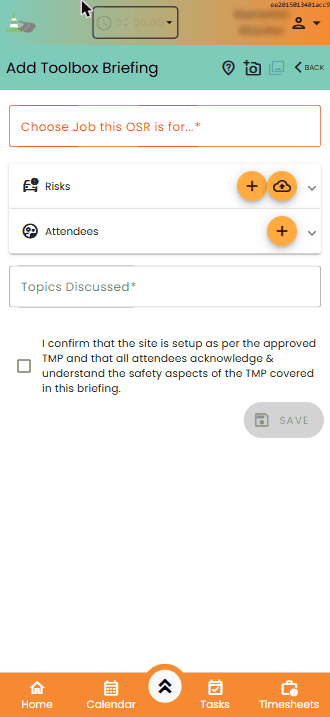
The toolbox briefing records the risks on site, the controls in place, and the people briefed on them.
Add Toolbox Briefing
## Risks
Tap **Add Risk Assessment** to add a risk, or tap the import button to bring in risks from your organisation's **Risk Register**: tick the groups you want, then tap **Import**. Your organisation sets up the register in eBoard: see [Toolbox briefing (hazards)](/eboard/settings/toolbox-briefing-hazards.md).
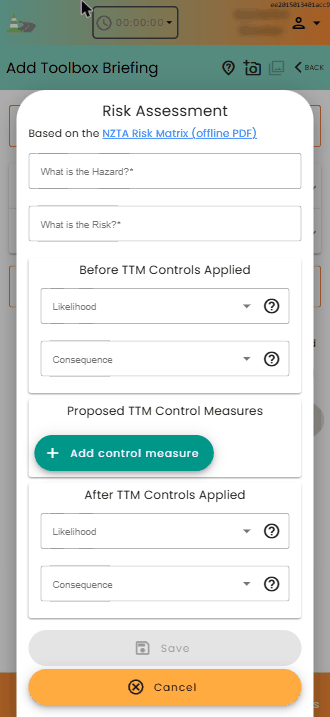
For each risk, based on the **NZTA Risk Matrix** (a PDF copy is available offline from the form):
1. **What is the Hazard?** and **What is the Risk?**
2. **Before TTM Controls Applied**: choose the **Likelihood** and **Consequence**. The risk rating is worked out for you. Tap **?** next to any of them for the definitions.
3. **Proposed TTM Control Measures**: describe each control measure and add its categories. Tap **Add control measure** for more.
4. **After TTM Controls Applied**: choose the likelihood and consequence with the controls in place.
5. Tap **Save**.
Adding a risk assessment
Each risk is listed with its rating before and after controls. Imported risks that still need details are marked **⚠️ To complete**; tap one to finish it.
## Attendees
Tap **Add Attendee** for each person briefed. Enter their **Name** and **Phone**, have them sign, and tap **Save**.
## Topics and confirmation
Enter the **Topics Discussed**, then tick the box to confirm that *the site is set up as per the approved TMP and that all attendees acknowledge and understand the safety aspects of the TMP covered in this briefing.*
Tap **Save**.
---
# Agent Instructions
This documentation is published with GitBook. GitBook is the documentation platform designed so that both humans and AI agents can read, navigate, and reason over technical content effectively. Learn more at gitbook.com.
## Querying This Documentation
If you need additional information that is not directly available in this page, you can query the documentation by asking a question.
Perform an HTTP GET request on the following URL with the `ask` and `goal` query parameters:
```
GET https://wiki.roaddirect.co.nz/mobile-app/on-site-records/toolbox-briefings.md?ask=&goal=
```
`ask` is the immediate question: it should be specific, self-contained, and written in natural language.
`goal` is what the user is ultimately trying to achieve, the reason they need the answer. Sharing it helps GitBook give you a better, more relevant answer. A goal is most helpful when it describes the outcome the user wants rather than restating the question. For example, with `ask=how do I create an API token`, a goal like `automate deployments from our CI pipeline` lets GitBook tailor the answer to that use case.
The response will contain a direct answer to the question and relevant excerpts and sources from the documentation.
Use this mechanism when the answer is not explicitly present in the current page, you need clarification or additional context, or you want to retrieve related documentation sections.