> For the complete documentation index, see [llms.txt](https://wiki.roaddirect.co.nz/llms.txt). Markdown versions of documentation pages are available by appending `.md` to page URLs; this page is available as [Markdown](https://wiki.roaddirect.co.nz/mobile-app/job-screen.md).
# The job screen
Tap **Expand Job** on a job card to open the job. This is where you do most of your work on site.
## Job details
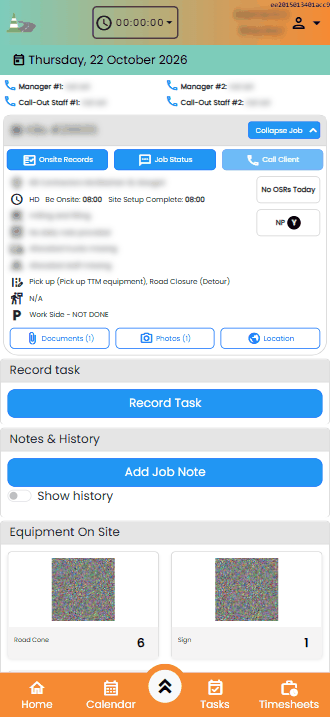
The top of the screen shows the full job card, including the work description, the day's note and the no-parking details. Under the job's heading are three buttons:
* **Onsite Records**: add or view [on-site records](/mobile-app/on-site-records.md) for this job. They're grouped into **Static Sites**, **Mobile and Semi-Static Sites** and **General**.
* **Job Status**: update the [job status](/mobile-app/job-status.md).
* **Call Client**: phone the job's contact (greyed out if there's no number).
At the bottom of the card:
* **Documents**: the job's TMPs and documents to download, and **Download Job Details** (a PDF of the job).
* **Photos**: the job's photos.
* **Location**: open the location in Google Maps.
{% columns %}
{% column %}
The job screen (client details blurred)
{% endcolumn %}
{% column %}
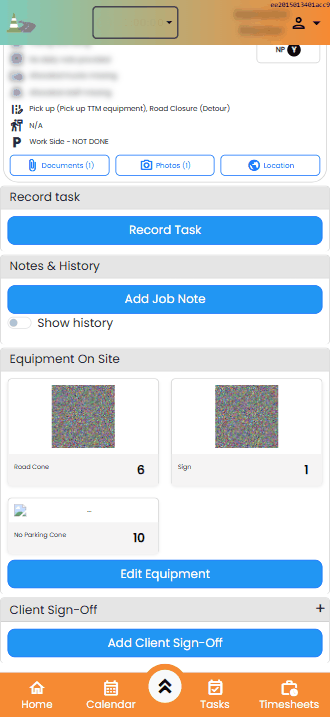
Further down: Record task, Notes & History, Equipment On Site and Client Sign-Off
{% endcolumn %}
{% endcolumns %}
## Record task
Record the time you spend on the job. What you record goes into [Tracking](/tracking.md) and is used for invoicing.
1. Tap **Record Task**, choose your **Resource** (the rate you're working under) and add **Notes**. Always state your vehicle name and the details of any other staff with you. Tap **CREATE**.
2. Tap **Start Recording Time** when you start.
3. Tap **Finish Recording Time** when you finish.
4. Tap **Submit This Task**.
Each time you've recorded (**Started At**, **Finished At**, **Submitted At**) is shown as a button. Tap it to correct the time; **Quick Set** offers the nearest times either side. Tap the resource name to change the resource or notes.
For more on tasks, see [My Tasks: recording time and equipment](/tracking/my-tasks.md).
## Notes & History
* **Add Job Note**: add a general note to the job, with an optional attachment.
* **Show history**: everything recorded on the job, with who did it and when. Use **Search all**, **Invoicing notes only** or **Task/Job notes only** to narrow it down.
## Equipment On Site
Shows the equipment currently on site. Tap **Edit Equipment** to update it:
1. Under **TTM Closure/What You Did**, note the closure you set up.
2. Use **−** and **+** (or type) to set the quantity of each item now on site. Set an item to **0** when you remove it.
3. Under **Your notes for invoicing team**, note anything they need to know, e.g. lost or damaged equipment, towing fees, or equipment not listed.
4. Tap **SAVE**.
Update Equipment
## Client sign-off
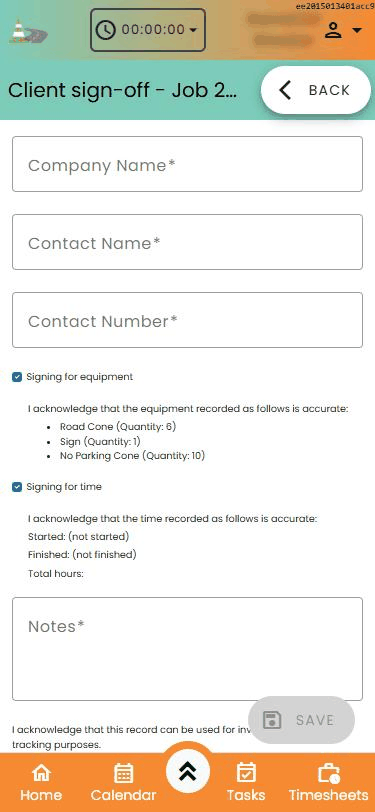
Get the client to sign for the equipment and/or time on site.
1. Tap **Add Client Sign-Off**.
2. Enter the **Company Name**, **Contact Name** and **Contact Number**. **Load contact from job** fills them in from the job.
3. Tick **Signing for equipment** and/or **Signing for time**. The app lists the equipment on site, and the start and end times and total hours, for the client to check.
4. Add any **Notes**.
5. Have the client sign in the box, then tap **Save**.
Client sign-off
Submitted sign-offs are listed under **Client Sign-Off**; tap **View** to see one.
---
# Agent Instructions
This documentation is published with GitBook. GitBook is the documentation platform designed so that both humans and AI agents can read, navigate, and reason over technical content effectively. Learn more at gitbook.com.
## Querying This Documentation
If you need additional information that is not directly available in this page, you can query the documentation by asking a question.
Perform an HTTP GET request on the following URL with the `ask` and `goal` query parameters:
```
GET https://wiki.roaddirect.co.nz/mobile-app/job-screen.md?ask=&goal=
```
`ask` is the immediate question: it should be specific, self-contained, and written in natural language.
`goal` is what the user is ultimately trying to achieve, the reason they need the answer. Sharing it helps GitBook give you a better, more relevant answer. A goal is most helpful when it describes the outcome the user wants rather than restating the question. For example, with `ask=how do I create an API token`, a goal like `automate deployments from our CI pipeline` lets GitBook tailor the answer to that use case.
The response will contain a direct answer to the question and relevant excerpts and sources from the documentation.
Use this mechanism when the answer is not explicitly present in the current page, you need clarification or additional context, or you want to retrieve related documentation sections.