> For the complete documentation index, see [llms.txt](https://wiki.roaddirect.co.nz/llms.txt). Markdown versions of documentation pages are available by appending `.md` to page URLs; this page is available as [Markdown](https://wiki.roaddirect.co.nz/mobile-app/getting-started.md).
# Getting started
## Sign in
Open the Road Direct mobile app in your phone's browser and sign in with your Road Direct username and password: the same login you use for eBoard. What you can see and do depends on your [access level](/getting-started/user-access-levels.md).
{% hint style="info" %}
Add the app to your home screen so it opens like any other app. In Chrome on Android, tap ⋮ → **Add to Home screen** (or **Install app**). In Safari on iPhone, tap **Share** → **Add to Home Screen**.
{% endhint %}
## Finding your way around
### The top bar
* **Timer**: shows how long you've been clocked on. Tap it to clock on, clock off or take a break (see [Timesheets and clocking on](/mobile-app/timesheets.md)).
* **Sync badge** (a cloud with a number): appears when you have changes that haven't been sent yet. Tap it to see them (see [Working offline and syncing](/mobile-app/offline-and-sync.md)).
* **Your name**: tap for **Waiting to sync**, **Reset Data** and **Logout**.
### The bottom bar
* **Home** / **Calendar**: the [Calendar](/mobile-app/calendar.md) of jobs.
* **Menu** (the round ⌃ button in the middle): opens the main menu.
* **Tasks**: [My Tasks](/mobile-app/my-tasks.md).
* **Timesheets**: your [timesheet](/mobile-app/timesheets.md).
### The main menu
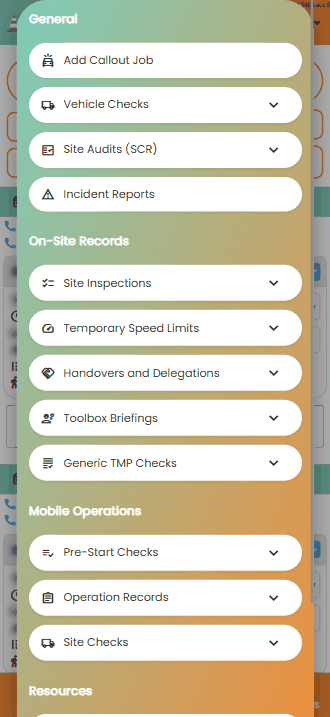
Tap the round button in the middle of the bottom bar. The menu is grouped into:
* **General**: **Add Callout Job**, **Vehicle Checks**, **Site Audits (SCR)** and **Incident Reports**.
* **On-Site Records**: **Site Inspections**, **Temporary Speed Limits**, **Handovers and Delegations**, **Toolbox Briefings** and **Generic TMP Checks**.
* **Mobile Operations**: **Pre-Start Checks**, **Operation Records** and **Site Checks**.
* **Resources**: **Announcements**, **Library** and **Guides**.
The main menu
Each record type has an **Add** and a **View** option. If you have a job open, the record is linked to that job and day, and **View** shows only that job's records. See [On-site records](/mobile-app/on-site-records.md).
## App updates
The app checks for a new version each time it starts, without holding you up. If you haven't started doing anything yet, it switches to the new version straight away. Otherwise you'll see **A new version of Road Direct is ready. Tap here to load it.** Tap the message when it suits you. Anything waiting to sync is kept.
## Logging out and shared devices
Tap your name → **Logout**. Logging out clears everything the app has stored on the device, so the next person to use it starts clean. **Reset Data** does the same without logging you out; use it if the app is showing out-of-date information.
{% hint style="warning" %}
If you have changes that haven't been sent yet, the app warns you before logging out or resetting, because those changes would be lost. Go to **Waiting to sync** and send them first.
{% endhint %}
---
# Agent Instructions
This documentation is published with GitBook. GitBook is the documentation platform designed so that both humans and AI agents can read, navigate, and reason over technical content effectively. Learn more at gitbook.com.
## Querying This Documentation
If you need additional information that is not directly available in this page, you can query the documentation by asking a question.
Perform an HTTP GET request on the following URL with the `ask` and `goal` query parameters:
```
GET https://wiki.roaddirect.co.nz/mobile-app/getting-started.md?ask=&goal=
```
`ask` is the immediate question: it should be specific, self-contained, and written in natural language.
`goal` is what the user is ultimately trying to achieve, the reason they need the answer. Sharing it helps GitBook give you a better, more relevant answer. A goal is most helpful when it describes the outcome the user wants rather than restating the question. For example, with `ask=how do I create an API token`, a goal like `automate deployments from our CI pipeline` lets GitBook tailor the answer to that use case.
The response will contain a direct answer to the question and relevant excerpts and sources from the documentation.
Use this mechanism when the answer is not explicitly present in the current page, you need clarification or additional context, or you want to retrieve related documentation sections.